Showing posts with label regex. Show all posts

Monday, August 3, 2015

Indicators: Conduit Toolbar

Conduit Toolbar. The name alone is enough to make me wince. The name should ring a bell if you have ever been in any kind of support position or if one of your relatives started to complain about a slow internet browser and asks you to remove "this weird toolbar." So what is Conduit and what is this toolbar?

I haven't done much research on the company itself, but a Google search for "conduit toolbar" will show you just how many people search for this crapware, and how many people have created a "how-to" in order to uninstall the application. The company (Conduit) has a very plain page without offering much detail and appears to be affiliated with a company called Como, which helps businesses create smart phone apps. Whatever, I don't care. I just want the network indicators.

The main reason why I created this post was to, obviously, show you some network indicators for this toolbar. I had a hard time finding any kind of information about indicators for the toolbar; almost all of the sites that I found had information on how to uninstall the toolbar. What does the toolbar do? Well it is pretty malicious and transmits sensitive data to a remote server. File analysis shows that it will attempt to see if a virtual machine is running (anti-forensics), will steal private information from your web browser, fingerprint your system (BIOS, MachineGUID), and even modify your proxy settings. Yeah, this is a nice piece of software. On to the network indicators!

Domains Contacted / HTTP URI Paths:
The following domains are contacted after installation and for application updates. The HTTP URI paths below each domain have been observed for those specific domains.
  • sp-storage.conduit-services.com
    • /autoupdate/
  • sp-storage.spccinta.com
    • /autoupdate/
  • sp-storage.spccint.com
    • /autoupdate/
  • servicemap.conduit-services.com
    • /sp/
    • /sptray/
  • servicemap.spccint.com
    • /sp/
    • /sptray/
  • sp.api.search.conduit.com
    • /up/settings/?ctid=
  • sp-alive-msg.conduit-data.com
  • sp-alive-msg.databssint.com
  • sp-autoupdate.conduit-services.com
    • /autoupdate/
    • /update/
  • sp-autoupdate.spccint.com
    • /autoupdate/
    • /update/
  • sp-ip2location.conduit-services.com
    • /ip/?client=sp
  • sp-ip2location.spccint.com
    • /ip/?client=sp
  • sp-settings.conduit-services.com
    • /searchprotectorsettings/
    • /carrier/
    • /plugins/
  • sp-settings.spccint.com
    • /searchprotectorsettings/
    • /carrier/
    • /plugins/
  • sp-translation.conduit-services.com
    • /?locale=
  • sp-usage.databssint.com

HTTP User-agent String:
  • Starts with: "SearchProtect"
  • Users a semi-colon as a field separator
  • Breakdown of user-agent string values:
    • SearchProtect;<Application Version>;<OS type and version>;<Unique identifier>
  • Example:
    • SearchProtect;1.7.1.50;Microsoft Windows 7 Professional;SP1A9B0A2A-43A1-4D4B-C21B-4CAEDF6B9192
  • Regex to find the unique identifier on the user-agent string:
    • ([a-zA-Z0-9]{10}\-[a-zA-Z0-9]{4}\-[a-zA-Z0-9]{4}\-[a-zA-Z0-9]{4}\-[a-zA-Z0-9]{12})
File Downloaded:
An associated file that is downloaded for updating is retrived from the following sites:
  • sp-storage.conduit-services.com
  • sp-storage.spccinta.com
  • sp-storage.spccint.com
Download activity is accomplished thorugh an HTTP GET request over port 80 for the file name "autoupdate.zip."

Further Reading:

Monday, June 22, 2015

User-agent Sting Indicator Page Updated

I updated the user-agent string indicator page to include Wireshark display filters using regex to find specific user-agents. I am by no means a regex pro, so if anyone finds any discrepancies or can figure out a cleaner way to search with regex, then please let me know.

A few things I noticed when using regex in Wireshark display filters. I was not able to figure out how to escape an open and close parenthesis (if I did escape those characters normally, it would not find the user-agent), so I had to do a logical AND plus another display filter in order to locate the right value (please see the Dyre user-agent string). Also, I had to be more explicit with the query with a shorted user-agent string value; meaning I had to add a Start of Line and End of Line character to the query.

I hope you all find this information useful, feel free to ask questions or leave comments. Thank you.

Monday, June 8, 2015

Indicators - Dridex

I have been seeing a large amount of emails containing malicious Microsoft Word macro-enabled documents attached. These documents, once the macro has been allowed to run by the user, will download and run an executable file to infect the machine. Below are several indicators that I have seen so far, and I have even created a Wireshark/regex filter that will help you find these files in a PCAP file.

Threat Name: Dridex

File Download Locations:
These files may no longer be active, but please use caution when downloading as they are malicious.

7sumur.com/73/20.exe
baypipo.com/55/55.exe
cellsitemanagement.com/73/20.exe
chiokings.com/88/15.exe
crestliquors.com/73/20.exe
croningroup.com/73/20.exe
dalmatian-bizhub.com/55/55.exe
deborah-abesser.com/88/15.exe
elkettasandassociates.com/25/10.exe
empreinte.com.ar/42/91.exe
footingclub.com/85/20.exe
hoinghihoithao.com/88/15.exe
jenisgroup.com/88/15.exe
joyofcamping.com/88/15.exe
kang-ning.com/353/654.exe
kapagrup.com/94/053.exe
m-bikes.gr.193-92-97-57.linuxzone26.grserver.gr/42/91.exe
mercury.powerweave.com/85/20.exe
mindfullivingprograms.com/73/20.exe
njgems.com/55/55.exe
orenkaholidays.com/5/0.exe
revistacannicas.com.ar/42/91.exe
seedsindaphne.org/85/20.exe
segurosdenotebooks.com.br/25/10.exe
thepattersonco.com/85/20.exe
tpsci.com/88/15.exe
tvteachervideos.com/42/91.exe
yubido.web.fc2.com/5/0.exe
zolghadri-co.com/25/10.exe

File Names:
The file names are numerical and 1 through 3 digits long.

0.exe
053.exe
10.exe
15.exe
20.exe
55.exe
654.exe
91.exe

IP Connections:
The malware will attempt to make CONNECT requests to the below IP addresses and ports.

144.76.238.214:4443
185.12.94.48:7443
185.12.95.191:4443
188.120.249.231:8443
70.32.74.108:7443
78.24.218.186:8443
78.46.60.131:4443
94.242.58.146:4443

Regex Query:
The following regex query should find the HTTP URI and file name of the executable file. Since the directory and file names are pretty consistent in the fact that they have been numerical values so far, it should be pretty easy to locate in your logs.
  • \/[1-9]{1,3}\/[0-9]{1,3}\.exe
The following Wireshark display filter (using regex) should also work:
  • http.request.uri matches "\/[1-9]{1,3}\/[0-9]{1,3}\.exe"
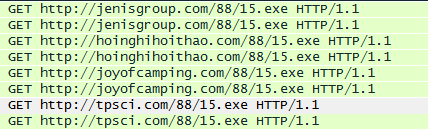
You should see similar information below in the Info column in Wireshark when you run the above query:


I am sure that I will be adding more indicators for this malware soon as it has been pretty prevalent over the past few weeks. Thanks for reading.

Monday, January 5, 2015

Finding Malicious Activity

Prior to going crazy with tons of network indicators, we need to know how to search through many text based log files in order to find malicious activity. How do we doing this? Regular expressions (regex) are the answer. Knowing how to write a regex query is not required (so long as you already have a query you can use), but it is certainly helpful (seriously though, learn it). A trend with this blog is that most of my work will be done on a Windows machine, unless there is no Windows alternative to a piece of software.

In order to dig through thousands of lines of text we will use a tool called grepWin. As its name implies, it is a Windows based grep tool and will allow us to dig through files using regex or text based searches. As we know, finding threats is never a one-shot deal. We may find a new indicator and we will need to dig through old logs files (again, and again, and...) to see if there has been past activity that we may have missed.

So where do we find pre-made regex queries? There are a few sites, such as; MalwareSigs, CoffeeShopSecurity, and many Snort rules. Grab those expressions, toss them into grepWin and press the search button. Too easy right? OK, grepWin is pretty straight forward. Make sure you enter the location of the files in the "Search in" field (preferably these files should be in a comma separated format). In the "Search" section, choose "Regex search" and enter the regex query into the "Search for" field; if you click the / button it will allow for multiple lines of regex which comes in very useful. Under the "Limit search" section, select "All sizes" and "Include subfolders."

Before you press that search button, you want to make sure your regex will work. The grepWin application allows you to test the query, but I prefer something a bit more visual https://regex101.com. It tests your query against a text string and will also give you an explanation of the regex query, which is great when you are learning, and it will let you know if there is a match. Let's do a quick test run on that website and use the following information:
Regular Expression: \/([a-z]{3})\?alpha=
Test String: hXXp://api.browseburst.com/gdi?alpha=0/
The regex query will search for the Mudrop infection, and the test string is/was an actual host used by Mudrop (don't go to the site). Read through the explanation on the right if you are unfamiliar with regex. Also, notice how it matched on "/gdi?alpha=" in the URI. Now that we know the regex will work, go ahead and click the search button in grepWin and, depending on how many files you have, grab a cup of coffee.

If grepWin found any hits, it will display them in the "Search results" window. On the bottom right of the application you will see "Files" and "Content." Files will show all of individual files with content that matched the query, and Content will show each individual line within those files. You can open each file by right clicking the line and selecting Open. After digging through your search results you can grab any unique indicators to create new alerts and use those indicators to dig deeper to find more malicious activity.

That's it, pretty straight forward. There are, of course, many other tools that can be used to find malicious activity but this is a good start if you are fresh. When performing these kinds of searches, always keep notes of the regex strings you have used as well as any unique indicators. If you really want to have some fun, grab about 10 through 20 regex strings and run a multi-line search on your log files. You may be surprised, or saddened, by what you find.